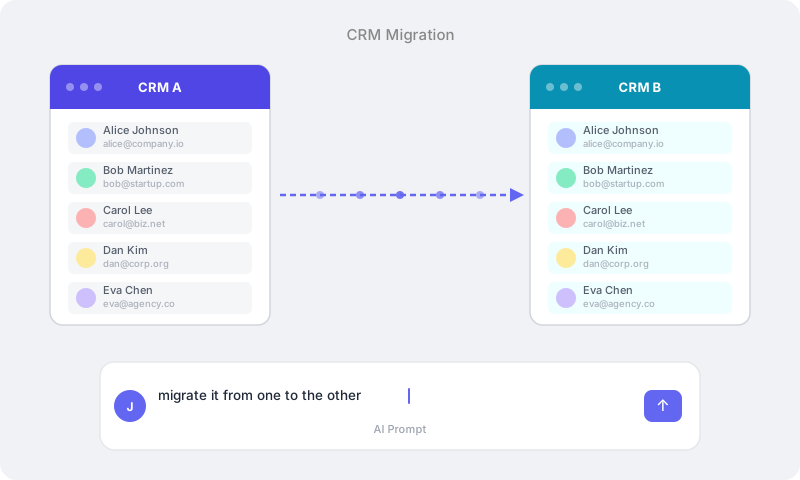
Use a governed AI agent to move your data from HubSpot to Pipedrive (or any CRM) — without writing a single line of code.
The Traditional CRM Migration Nightmare
Migrating data between CRMs is one of the most dreaded projects in any sales team's roadmap. Here's what it typically looks like:
Option 1: Manual Export/Import
You export CSVs from HubSpot — contacts, deals, companies, notes, activities — each in separate files with different schemas. Then you spend weeks mapping fields, cleaning data, resolving duplicates, and importing into Pipedrive. Deal histories get flattened. Relationships between records break. Custom fields don't transfer. Email threads vanish.
Option 2: Hire a Migration Specialist
You pay $5,000–$25,000 for a consulting firm to do what is essentially the same manual process, but with better tooling. It still takes 4–8 weeks. You still lose context.
Option 3: Build a Custom Integration
Your engineering team writes scripts against both APIs. They handle pagination, rate limits, field mapping, error recovery, and data validation. It takes months. When the API changes, it breaks.
Option 4: Use a Migration Tool
SaaS tools like Import2 or Trujay handle the basics, but they move data in bulk without intelligence. They can't interpret a deal's status from email context, enrich records with missing information, or make smart decisions about which deals are still active.
Every one of these approaches shares the same fundamental problem: they treat CRM migration as a data transfer problem, when it's actually a data understanding problem.
Your deals have context. Your contacts have relationships. Your pipeline has nuance. A row in a CSV doesn't capture any of that.
What If an AI Agent Could Handle the Migration?
Imagine telling an AI agent:
"Look at all my deals in HubSpot. For each deal, check the associated email threads in Gmail to understand the current status. Then create matching deals in Pipedrive with accurate stages, contact associations, and activity notes that reflect the real state of each relationship."
That's not hypothetical. That's exactly what you can build with ContextGate in about 15 minutes.
ContextGate is a platform for building governed AI agents — AI that can use tools from external systems like CRMs, email, databases, and more, with policy-based guardrails that ensure your data stays secure.
Here's why it's uniquely suited for CRM migration:
- Plug in any application — Connect HubSpot, Pipedrive, Gmail, Slack, or hundreds of other apps through pre-built integrations or custom MCP (Model Context Protocol) connections
- Use any LLM — Choose the best model for the job: GPT-4o for complex reasoning, Claude for nuanced text, or a fast model like GPT-5-nano for high-volume operations
- Governed by default — PII redaction, governance checks, and full audit logging ensure your customer data is handled responsibly throughout the migration
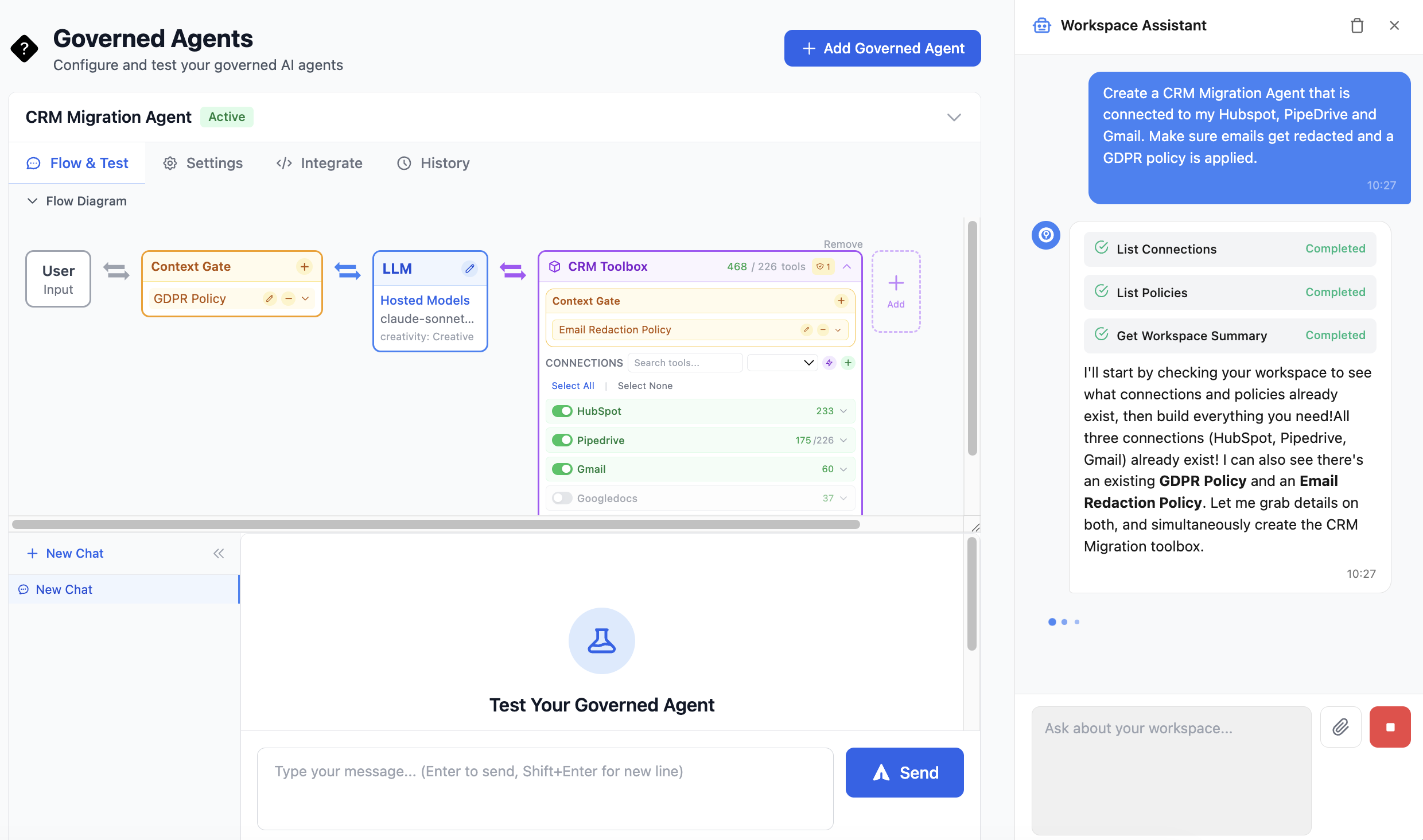
A workspace assistant that builds the agent for you — Describe what you want in plain English and the assistant creates the connections, toolboxes, policies, and governed agent automatically
Step-by-Step: Building a CRM Migration Agent
Prerequisites
- A ContextGate account (sign up at contextgate.ai)
- Access to your source CRM (HubSpot in this example)
- Access to your target CRM (Pipedrive in this example)
- Optionally, access to Gmail or another email provider for enriching deal context
Step 1: Create a New Workspace
After signing in, click Create Workspace and name it something descriptive — like "HubSpot to Pipedrive Migration."
ContextGate organizes everything into workspaces. Each workspace has its own connections, toolboxes, policies, and governed agents. This keeps your migration isolated and auditable.
Step 2: Connect Your Applications
Navigate to App Connections in the sidebar. This is where you connect the systems your AI agent will interact with.
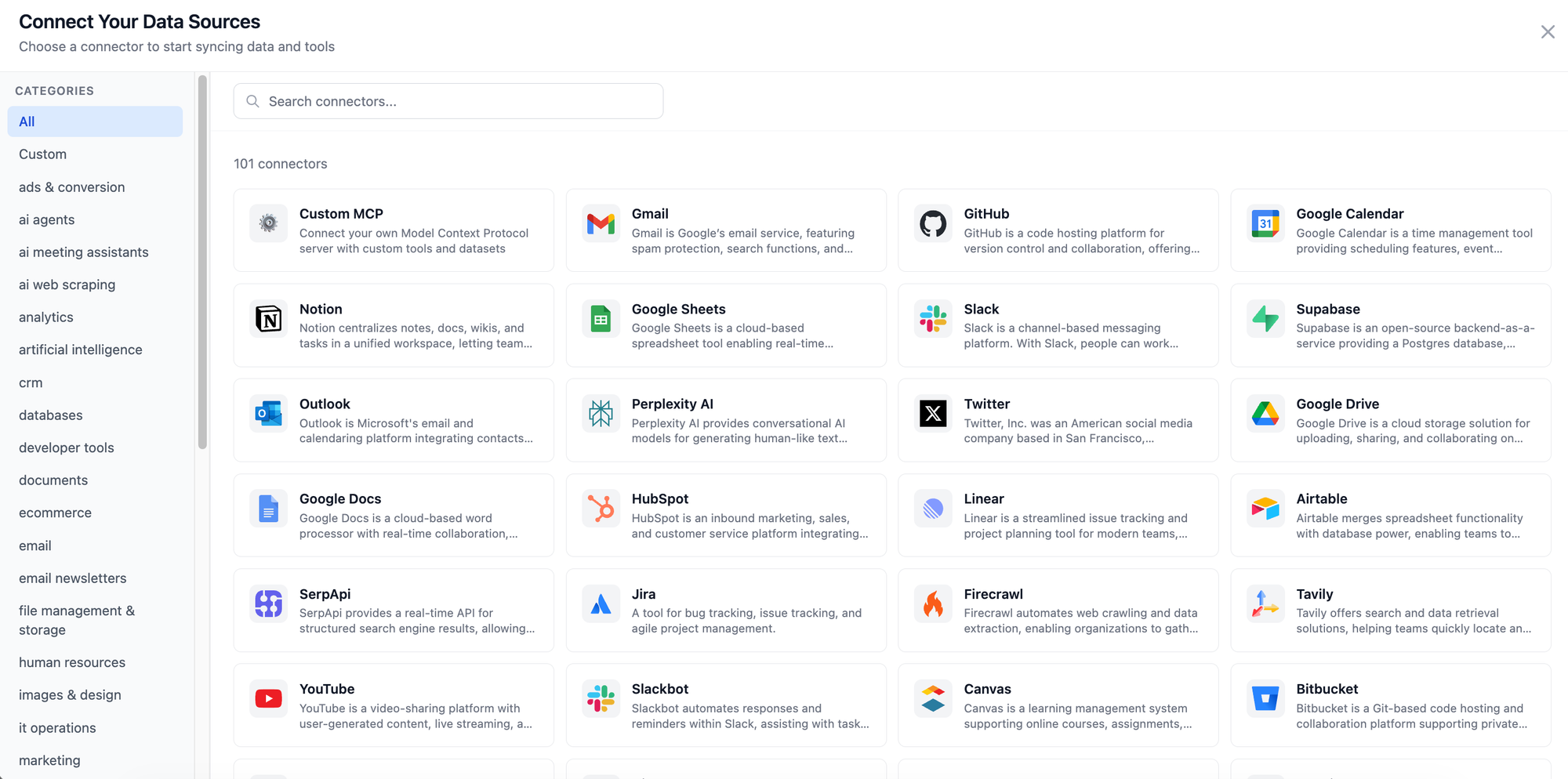
Connect HubSpot (OAuth):
- Click Add Connection
- Search for HubSpot
- Click it — you'll be redirected to HubSpot's authorization page
- Grant access and you'll be redirected back to ContextGate
- HubSpot now appears as a connected app with all available tools (contacts, deals, companies, tickets, etc.)
Connect Pipedrive (API Key):
- Click Add Connection
- Search for Pipedrive and click it
- Enter your Company Domain (e.g.,
yourcompany.pipedrive.com) - Enter your API Token (found in Pipedrive under Settings → Personal preferences → API)
- Click Save — Pipedrive now appears as a connected app
Connect Gmail (OAuth) — Optional but Recommended:
- Click Add Connection
- Search for Gmail and click it
- Authorize your Google account
- Gmail tools (search, read, send) are now available to your agent
Each connection automatically exposes its tools via the Model Context Protocol. HubSpot might give you 40+ tools for managing contacts, deals, and activities. Pipedrive gives you tools for deals, persons, organizations, and pipelines. Gmail provides search and read capabilities.
Step 3: Create a Toolbox
A toolbox is a curated bundle of tools from your connections, scoped to a specific use case.
Navigate to Toolboxes and click Create Toolbox. Name it "CRM Migration Tools."
Add your HubSpot, Pipedrive, and Gmail connections to the toolbox. Then — and this is the powerful part — use Smart Tool Selection:
- Click Select Tools for Task
- Describe the task: "Migrate contacts and deals from HubSpot to Pipedrive, using Gmail to enrich deal context"
- ContextGate's AI automatically selects only the relevant tools — HubSpot read operations, Pipedrive create/update operations, and Gmail search/read
- Tools like "delete contact" or "send email" are automatically excluded, because they're not relevant to a migration
This is a crucial safety feature. Your agent can only use the tools you've explicitly enabled.
Step 4: Add a Governance Policy
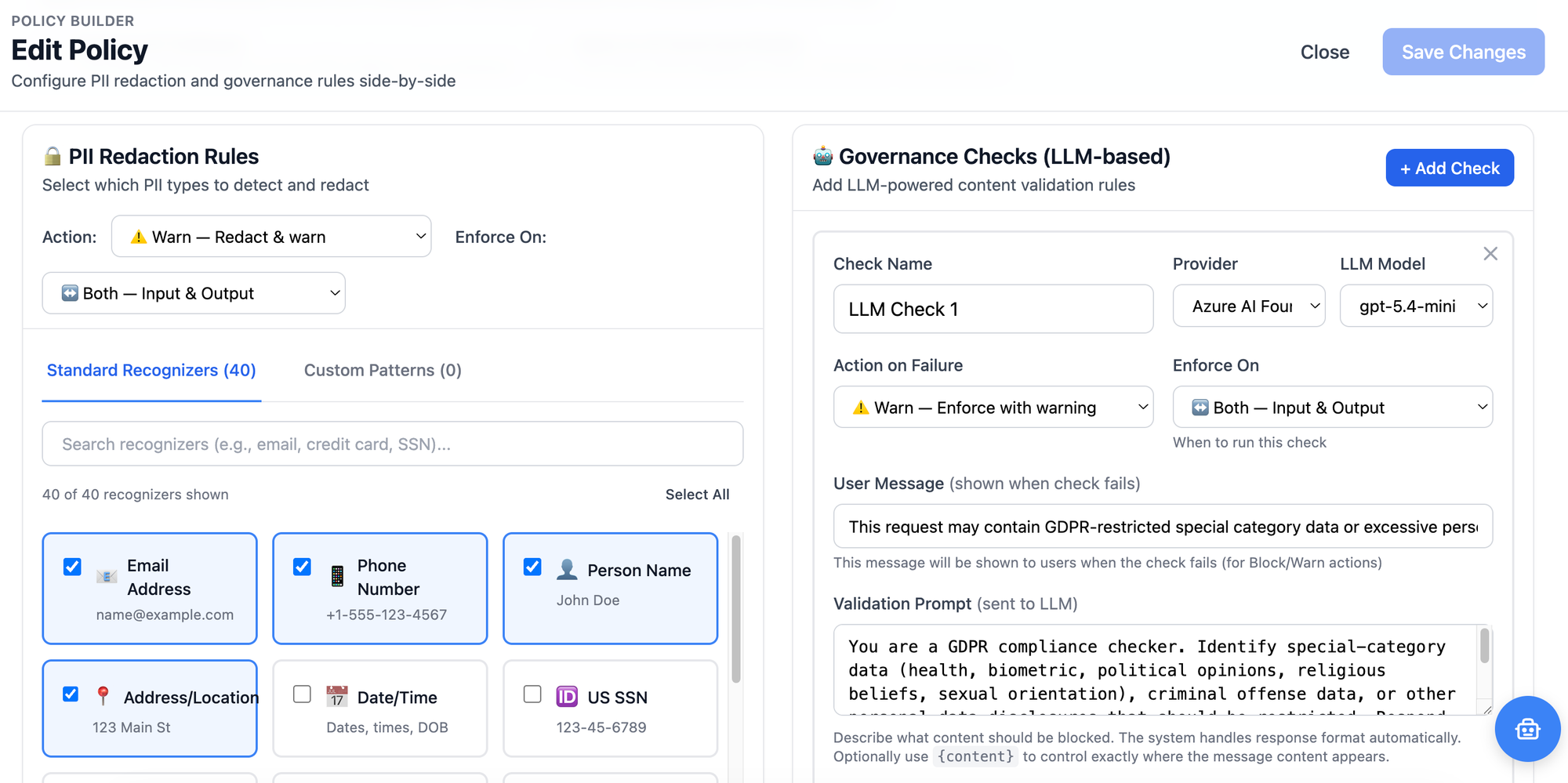
Before giving an AI agent access to your customer data, you want guardrails. Navigate to Policies and create a new policy.
PII Protection:
- Add PII detection for
EMAIL_ADDRESS,PHONE_NUMBER,CREDIT_CARD, andPERSON - Set the action to
warn— this means the agent can still work with the data, but every interaction with PII is logged for your compliance records
Governance Check (Optional but Recommended):
- Add a governance check with the prompt: "Block any request that attempts to delete records from HubSpot or send emails to contacts. This agent should only read from HubSpot and write to Pipedrive."
Set the action to block
This ensures that even if the AI hallucinates or misinterprets an instruction, it physically cannot delete your source data or spam your contacts.
Step 5: Create the Governed Agent
Navigate to Governed Agents (Model Studio) and create a new agent.
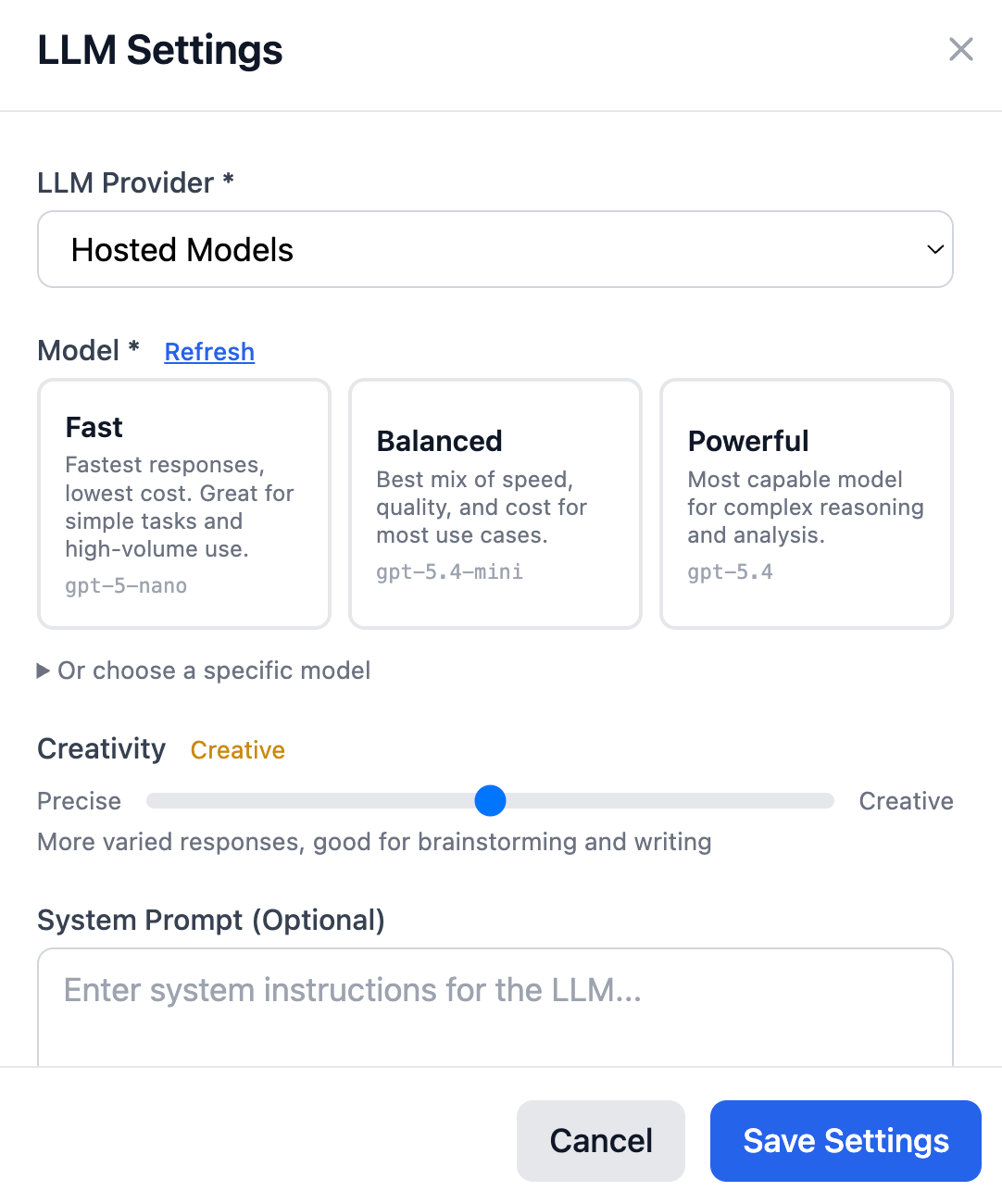
Choose your model:
- For a migration with complex reasoning (interpreting email context, mapping deal stages), use Claude Sonnet 4.6 or GPT-4o
- For a high-volume, straightforward field-mapping migration, use a faster model like GPT-5-nano to save costs
Set the system prompt:
You are a CRM migration assistant. Your job is to migrate data from HubSpot to Pipedrive.

For each HubSpot deal:
1. Read the deal details (name, stage, value, associated contacts)
2. Search Gmail for recent email threads involving the associated contacts
3. Determine the real status of the deal based on email context
4. Create a matching deal in Pipedrive with:
   - Accurate stage mapping (HubSpot stages → Pipedrive stages)
   - All associated contacts linked
   - Activity notes summarizing the email context
   - The original HubSpot deal ID in a custom field for reference

Stage mapping:
- "Appointment Scheduled" → "Qualified"
- "Qualified to Buy" → "Contact Made"
- "Presentation Scheduled" → "Demo Scheduled"
- "Decision Maker Bought-In" → "Proposal Made"
- "Contract Sent" → "Negotiations Started"
- "Closed Won" → "Won"
- "Closed Lost" → "Lost"

Always preserve the original data. Never delete anything from HubSpot.
Attach your toolbox and policy, and your governed agent is ready.
Step 6: Run the Migration
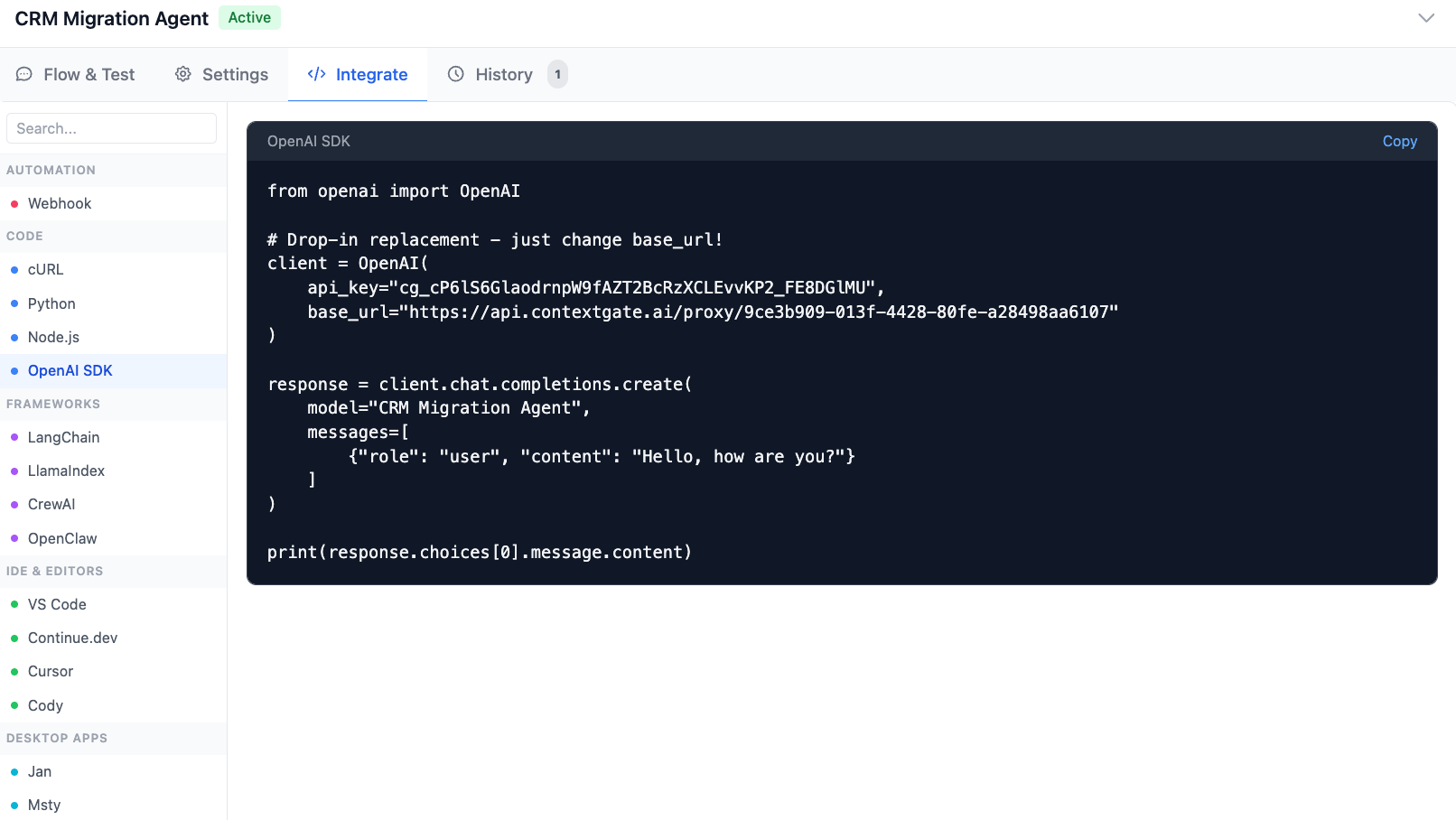
You now have an API endpoint for your governed agent — an OpenAI-compatible endpoint you can call from any client.
Option A: Use the Model Sandbox
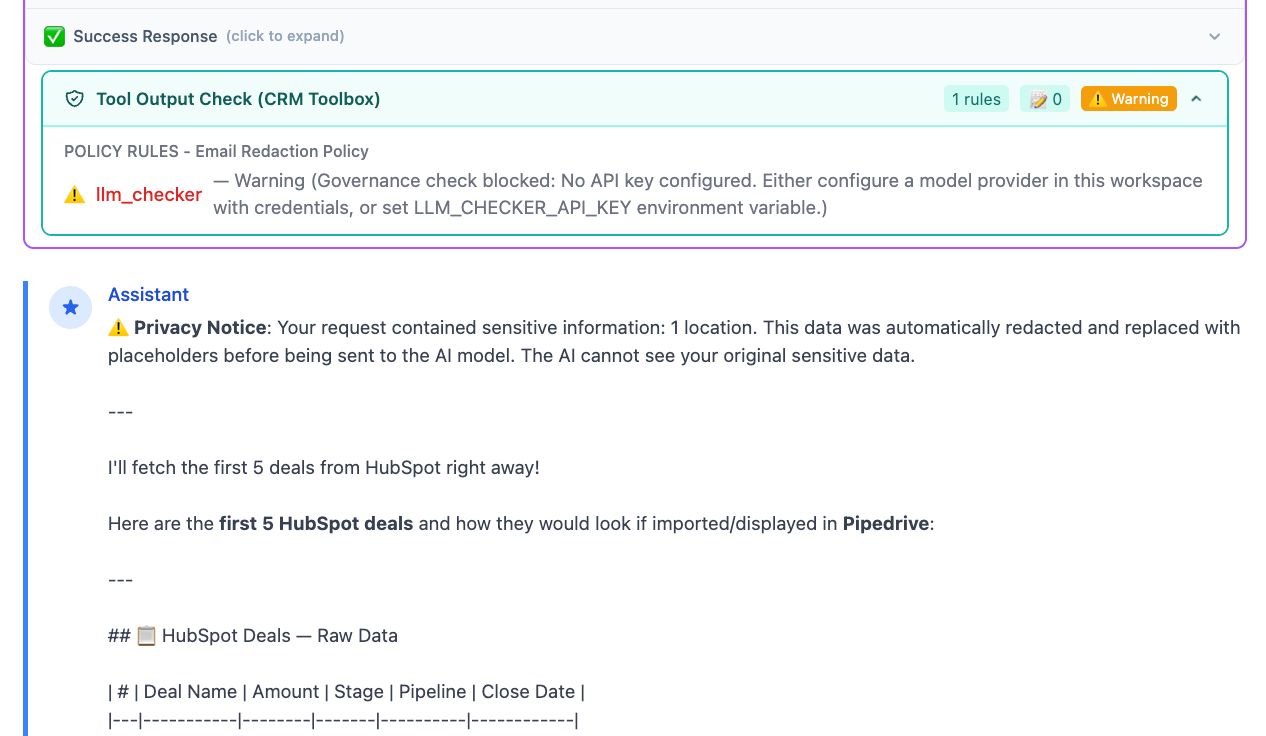
ContextGate includes a built-in sandbox where you can chat with your agent directly. Start with a small test:
"List the first 5 deals from HubSpot and show me what they would look like in Pipedrive."
The agent reads from HubSpot, checks Gmail for context, and shows you the proposed Pipedrive records — without actually creating anything yet.
Review the output, adjust your system prompt if needed, then go live:
Migrate all open deals from HubSpot to Pipedrive."
Option B: Use the API Programmatically
from openai import OpenAI

client = OpenAI(
    base_url="https://api.contextgate.ai/proxy/YOUR_AGENT_ID/v1",
    api_key="your-contextgate-api-key"
)

response = client.chat.completions.create(
    model="claude-sonnet-4-6",
    messages=[{
        "role": "user",
        "content": "Migrate all open deals from HubSpot to Pipedrive. Process them in batches of 10."
    }]
)
Because the endpoint is OpenAI-compatible, you can integrate it into any existing workflow, automation tool, or custom application.
Step 7: Monitor and Audit
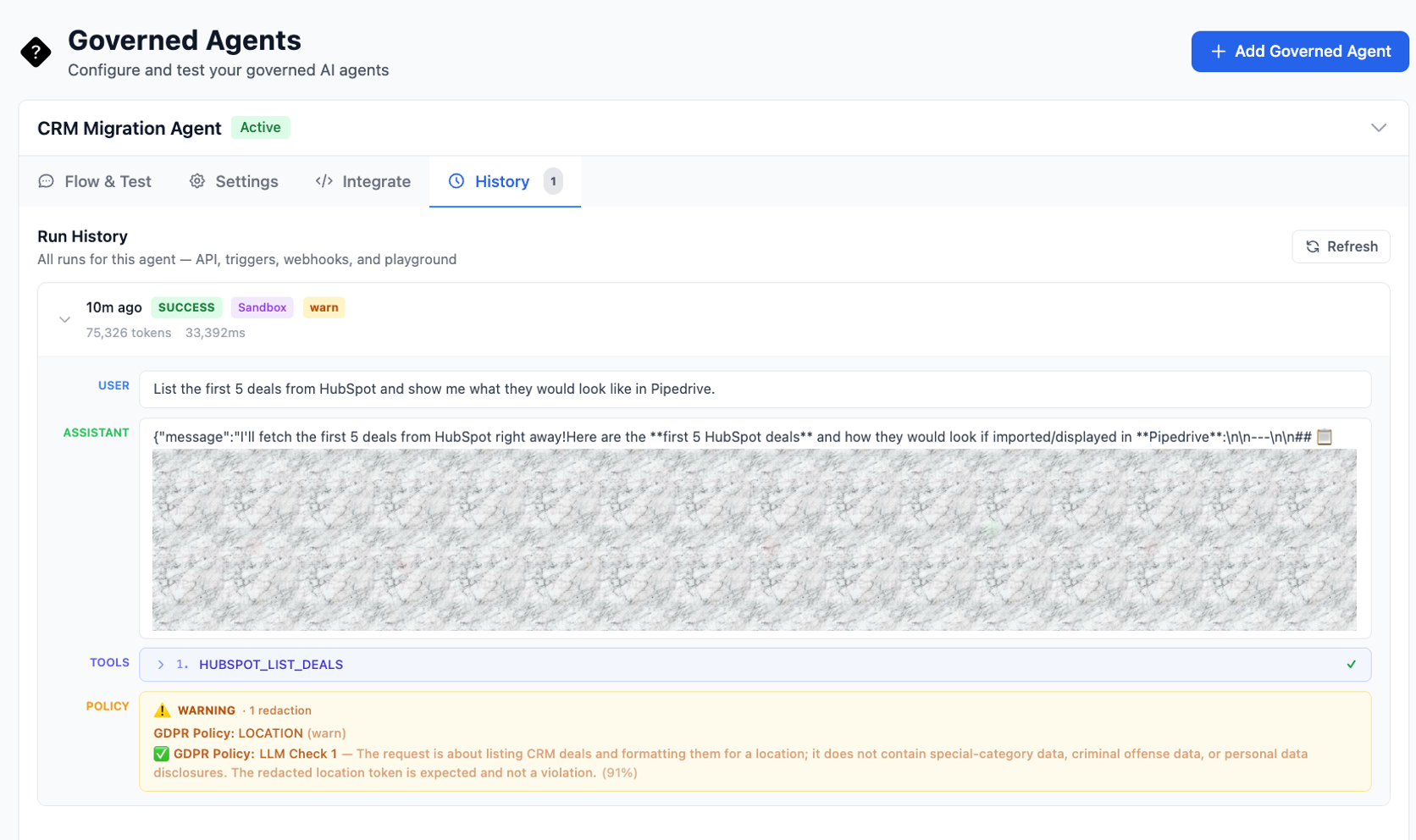
As the migration runs, every action is logged in Activity Logs:
- Every tool call the agent made (which HubSpot deals it read, which Pipedrive records it created)
- Every policy action (PII detected, governance checks passed/failed)
- Full request/response payloads for audit compliance
If something looks wrong, you can pause, review the logs, adjust the agent's instructions, and resume.
Why This Approach Is Different
Intelligence, Not Just Data Transfer
Traditional migration tools copy fields from A to B. An AI agent understands the data. It can read email threads to determine if a deal marked "In Progress" is actually stale. It can infer missing fields from context. It can flag inconsistencies for human review.
Any Source, Any Destination
ContextGate uses the Model Context Protocol (MCP), an open standard for connecting AI to external systems. If your source or destination has an API, you can connect it. HubSpot to Pipedrive today, Salesforce to Monday.com tomorrow — same platform, same approach.
Governed by Design
Most AI tools give you power without guardrails. ContextGate puts governance at the center:
- PII redaction ensures customer data is handled responsibly
- Governance checks prevent unintended actions (like deleting source records)
- Full audit logging gives you a complete trail for compliance
- Tool-level control means the agent can only access what you explicitly allow
Model Flexibility
You're not locked into one AI provider. Use GPT-4o for complex reasoning tasks, Claude for nuanced text interpretation, or a cost-effective model for bulk operations. Switch models at any time without rebuilding your agent.
The Workspace Assistant
Don't want to configure everything manually? ContextGate's built-in workspace assistant can do it for you. Just tell it:
"Build me a governed agent that migrates data from HubSpot to Pipedrive using Gmail for context."
It will create the connections, toolbox, policies, and governed agent automatically — then hand you the controls.
Beyond Migration: What Else Can You Build?
Once you've experienced building a governed AI agent for CRM migration, the possibilities multiply:
- Ongoing CRM Sync — Keep HubSpot and Pipedrive in sync with a governed agent that runs on a schedule
- Sales Intelligence — An agent that reads Gmail threads, updates deal stages, and alerts your team on Slack
- Customer Onboarding — An agent that creates accounts across multiple systems when a deal closes
- Compliance Monitoring — An agent that audits CRM data for PII exposure and flags violations
Every one of these agents gets the same governance framework: policies, audit logs, tool-level access control, and model flexibility.
Getting Started
- Sign up at contextgate.ai
- Create a workspace for your migration project
- Connect your apps — HubSpot, Pipedrive, Gmail, or whatever you're working with
- Build your agent — manually or with the workspace assistant
- Run a test migration in the sandbox before going live
- Monitor and iterate using the activity logs
CRM migration doesn't have to be a nightmare. With the right AI agent and proper governance, it can be done with a simple conversation.
ContextGate is a platform for building governed AI agents with policy-based tool access control. Connect any application, use any LLM, and deploy secure agents with full audit logging. Learn more at contextgate.ai.